iPhones have been water-resistant since the iPhone 7, but the speaker grille is still an open mesh — water gets in, sits there, and your audio goes muffled or buzzy. Apple doesn’t include a built-in water eject feature on iPhones (unlike the Apple Watch), so you need another way to push the water out. Here’s what actually works.
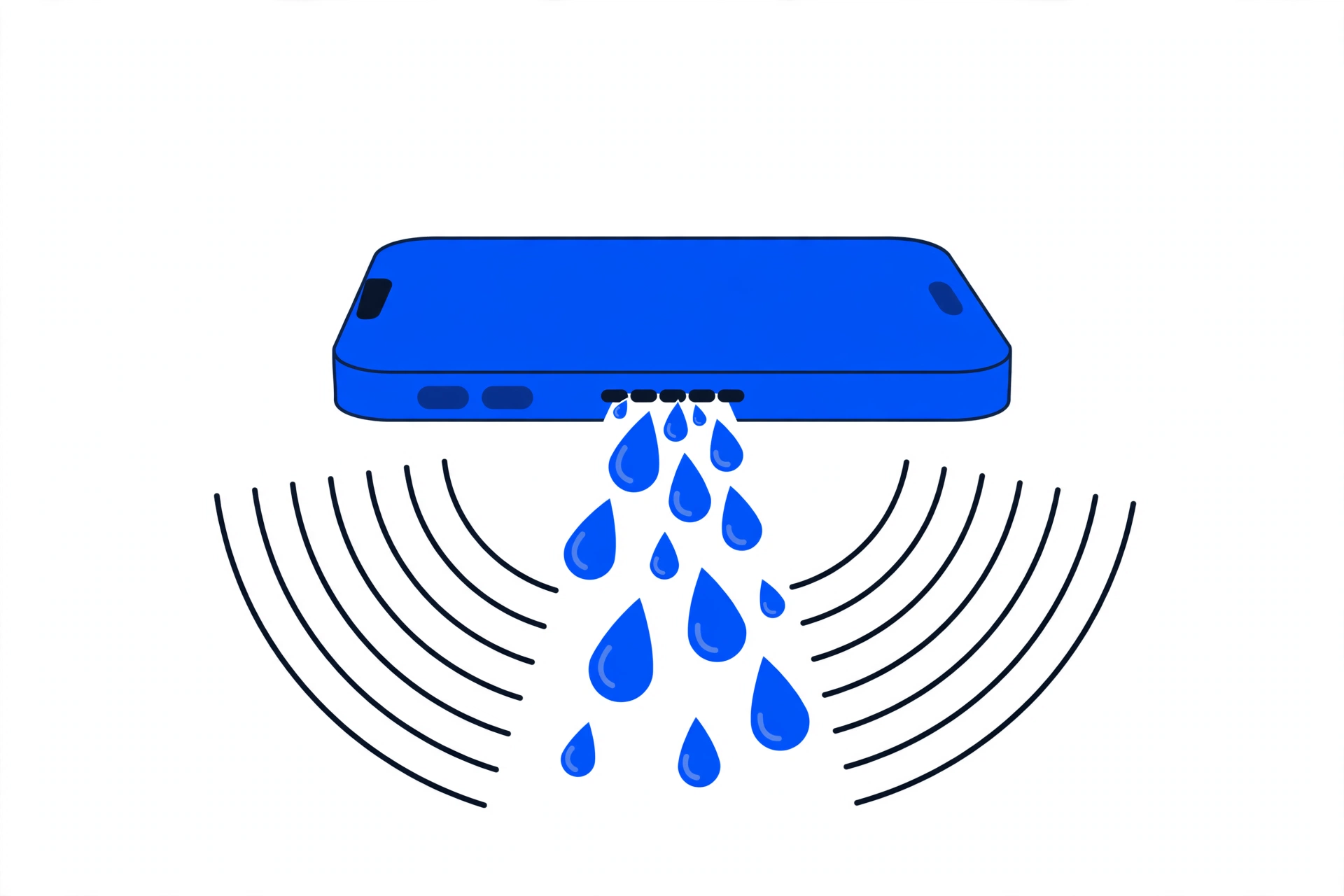
Where the water sits on an iPhone
On most iPhones, the main loudspeaker is at the bottom edge, next to the charging port. There’s also the earpiece speaker at the top, which doubles as a second loudspeaker for stereo sound. Water usually collects in the bottom speaker grille after rain, splashes, or a drop in water. You’ll notice it as muffled music, quiet ringtones, or a rattling sound on bass notes.
The water resistance rating (IP67 or IP68 depending on model) protects the internals against brief submersion, but it doesn’t stop water from sitting in the grille. That trapped water is what you’re hearing.
The fastest fix: a water eject tone in the browser
You don’t need an app. Open MySoundMix in Safari on your iPhone — it runs entirely in the browser, nothing to install.
1. Remove the case and wipe the phone dry with a soft cloth.
2. Turn the volume up to maximum. The tone needs full power to move the cone properly.
3. Hold the iPhone with the bottom speaker facing down.
4. Start Water Eject mode and let it run for 30–60 seconds. The ~165 Hz tone drives the speaker cone with deep, even strokes that shake water loose. You’ll often see droplets emerge from the grille.
5. Check the sound with a song or a ringtone. Still muffled? Run it once more.
6. Set the phone speaker-down on a dry towel for an hour to let any remaining moisture evaporate.
The whole thing takes about two minutes of active effort.
iPhone-specific things worth knowing
The earpiece speaker. If call audio sounds muffled, water may be in the top earpiece instead. The eject tone is tuned for the main speaker, but the drying steps are the same. For the earpiece, extra air-drying time usually does it.
The charging port. iPhones show a “liquid detected” warning if there’s moisture in the port. Don’t charge until that clears — the phone checks again each time you plug in. Wireless charging is also best avoided until dry.
Volume and distortion. If the speaker crackles at high volume after drying, play the eject tone once more, then test at medium volume. Persistent crackling after a full day of drying can mean the cone itself was stressed — a repair shop can replace the speaker module, which is a routine fix.
Water resistance wears down. The seals that give your iPhone its IP rating degrade over time and after drops. An older iPhone that survived rain last year might not this year. Treat water exposure as something to deal with promptly, not something the phone shrugs off.
What doesn’t help
- Blowing into the speaker. Your breath adds moisture.
- Compressed air. It can force water deeper past the seals.
- The rice bag. Slow, and starch dust gets into the Lightning/USB-C port.
- Heating the phone. Bad for the battery and the adhesive seals.
Related guides
- How to get water out of a phone speaker — the general method for any phone.
- Is 165 Hz safe for your speaker? — what the tone does and why it won’t damage anything.
- Test your iPhone speaker in the browser — verify the speaker is back to normal.
- Muffled speaker after water? Start here — full troubleshooting checklist.
Frequently asked questions
Does the iPhone have a built-in water eject like the Apple Watch?
No. The Apple Watch has a water lock/eject feature; the iPhone does not. That’s why a browser-based tone tool exists — it does the same job through the iPhone’s own speaker.
Will the water eject tone damage my iPhone speaker?
No. The tone is a normal audio signal at a normal (if loud) volume — well within what the speaker handles every day playing music. Keep the phone away from your ear while it runs.
How do I know the water is fully out?
Play music with clear vocals and some bass at medium volume. If voices sound clear and there’s no buzzing or rattling on low notes, you’re good. Compare with how it sounded before the water exposure.
My iPhone says liquid detected in the connector. What now?
Unplug everything, hold the phone with the port facing down, and let it air dry for several hours. The warning clears on its own once the port is dry. Don’t try to charge through it.
The speaker still crackles after two days of drying. Now what?
The speaker module may need replacing. It’s one of the cheaper iPhone repairs — an independent shop can usually do it same-day. Back up your phone before taking it in, as always.